> This page is for version Generative (default).
> For other versions, use one of these documentation indexes:
> - Generative (default): https://developers.ada.cx/generative/llms.txt
> - Scripted: https://developers.ada.cx/scripted/llms.txt
> For clean Markdown of any page, append .md to the page URL.
> For a complete documentation index, see https://developers.ada.cx/llms.txt.
> For AI client integration (Claude Code, Cursor, etc.), connect to the MCP server at https://developers.ada.cx/_mcp/server.
# Domain restrictions
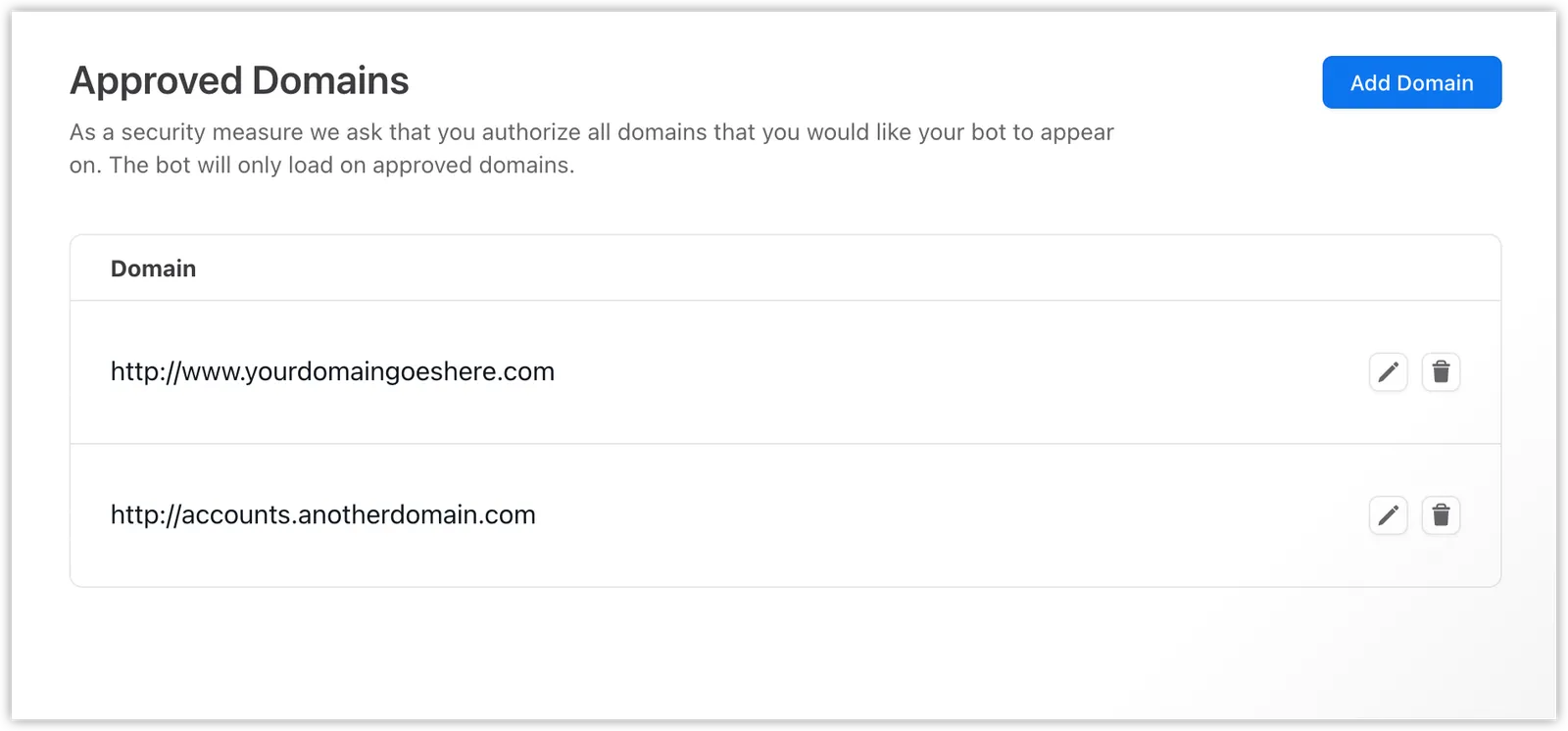
Safeguard your AI Agent against attack by malicious parties by authorizing all the domains where you'd like your AI Agent to appear. Your AI Agent will only show for your website visitors if you authorize your website's domain URL by adding it to your approved domains list in Ada.
## Add a domain\[#add-domain]
Add a domain to the Approved domains list:
1. On the Ada dashboard, go to **Channels** >
**web chat**, then go to the **Privacy & security** tab.
2. Beside **Approved domains**, click **Add domain**. The **Add An
Authorized Domain** window appears.
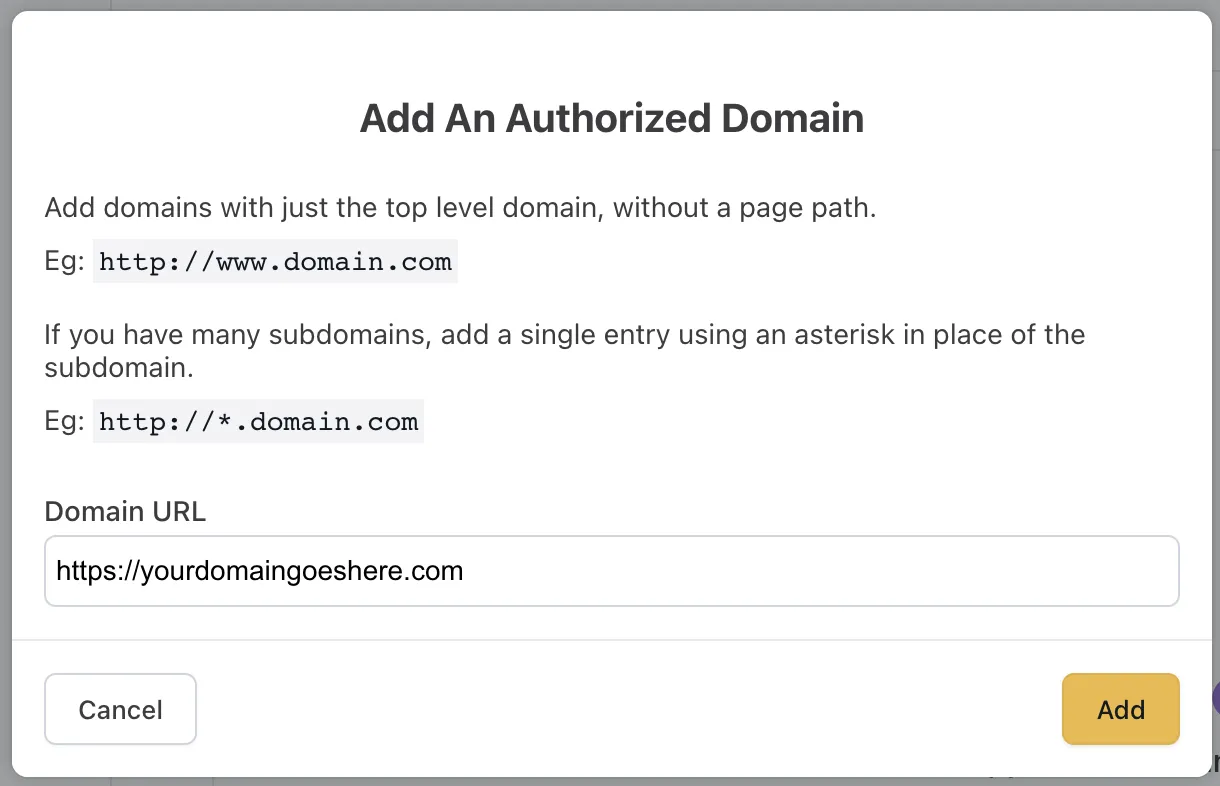
3. In the **Add An Authorized Domain** window, in the **Domain URL**
field, enter the domain URL you want to authorize. Use the following
formats:
* Single domain: `https://www.yourdomain.com`
* Wildcard URL matching for all subdomains:
`https://*.yourdomain.com`
* Use the top level domain URL only. Do not include any page
paths. If you have many subdomains, but want to include only
some of them, you have to add each one individually.
* Use wildcards for domains with subdomains. The top level domain
itself needs to be added separately (e.g., `https://domain.com`
needs to be added separately from `https://*.domain.com)`.
* All domain variants need to added separately.
*
         http://

         **www**

         .yourdomain.com
* `http://yourdomain.com`
*
         http

         **s**

         ://

         **www**

         .yourdomain.com
*
         http

         **s**

         ://yourdomain.com
4. Click **Add** to add the domain URL to the domain list.
## Edit a domain\[#edit-domain]
You can edit any domains already in your list.
1. On the Ada dashboard, go to **Channels** >
**web chat**, then go to the **Privacy & security** tab.
2. Under **Domain**, click the **pencil** icon next to the domain entry you want to edit.
3. In the **Edit Domain** window, make your changes to the domain URL
in the **Domain URL** field.
4. Click **Save**.
You'll now see the updated domain in the domain list.
## Remove a domain\[#remove-domain]
1. On the Ada dashboard, go to **Channels** >
**web chat**, then go to the **Privacy & security** tab.
2. Under **Domain**, click the **trash can** icon next to the domain entry you want to delete.
3. In the **Confirm Domain Removal** window that appears, click **Yes,
Remove Domain**.
This removes the domain from the list. Your AI Agent will no longer launch on
that domain.
## Troubleshooting\[#UUID-a31f8027-0e4d-c9b9-7d81-464b57615a00_id_4403701527315_id_h_01FXNEV274VPZZNZ6ZSNBSYX7Q]
If the bot is embedded on a URL but is not displaying as expected, it is
likely that it is being blocked from loading on that site. To
investigate:
1. In Chrome, Firefox, or Safari, right-click any part of the page and
select **Inspect Element**.
2. Access the **console** from within the inspector tool.
3. On the webpage, click the chat icon to launch the AI Agent.
4. Look for errors in the console. It is likely error messages will
indicate that it "violates the Content Security Policy directives."
In other words, that the URL is not included in the AI Agent's list of
approved domains.
5. Cross-reference your bot's list of approved domains with the URL you
are testing, to make sure the domain URL was formatted properly when you [added it to your AI Agent](#add-domain).
---
Have any questions? Contact your Ada team, or email us at []().