> This page is for version Scripted.
> For other versions, use one of these documentation indexes:
> - Generative (default): https://developers.ada.cx/generative/llms.txt
> - Scripted: https://developers.ada.cx/scripted/llms.txt

> For clean Markdown of any page, append .md to the page URL.
> For a complete documentation index, see https://developers.ada.cx/llms.txt.
> For AI client integration (Claude Code, Cursor, etc.), connect to the MCP server at https://developers.ada.cx/_mcp/server.

# Guide chatters through conversations using Answer flows and quick replies

## Definitions\[#UUID-82f30670-1a6a-ed51-28c5-3a5cebb23791_id_360018117594_id_definitions]

**Answer Flows** are the different ways you can structure Answers and
quick reply buttons to guide the chatter through a conversational
journey. Any response from the bot that includes more than one Answer
per chatter question, is considered a type of Answer Flow.

Answer Flows can be thought of visually as flowcharts. These flows can
vary in complexity, ranging from simple linear steps to detailed
structures with different branches that can be accessed depending on a
chatter’s choices. It’s like a choose-your-own-adventure for the
chatter!

The steps (or branches) of the flow are individual Answers, represented
as **quick reply buttons**. Quick reply buttons act as links that
trigger other Answers in the bot, if selected. When multiple quick reply
options are presented to the chatter, the title of the quick reply
button that they select becomes their question, and the other buttons
disappear.

## Use cases\[#UUID-82f30670-1a6a-ed51-28c5-3a5cebb23791_id_360018117594_id_use-cases]

There are four main use cases for Decision Trees & Quick Replies:

<table>
  <thead>
    <tr>
      <th>
        Use Case 1: Menu
      </th>

      <th>
        Chatter's view
      </th>
    </tr>
  </thead>

  <tbody>
    <tr>
      <td>
        Grouping related topics that can be accessed by a top-level main
        menu.

        \


        **Example**

        \


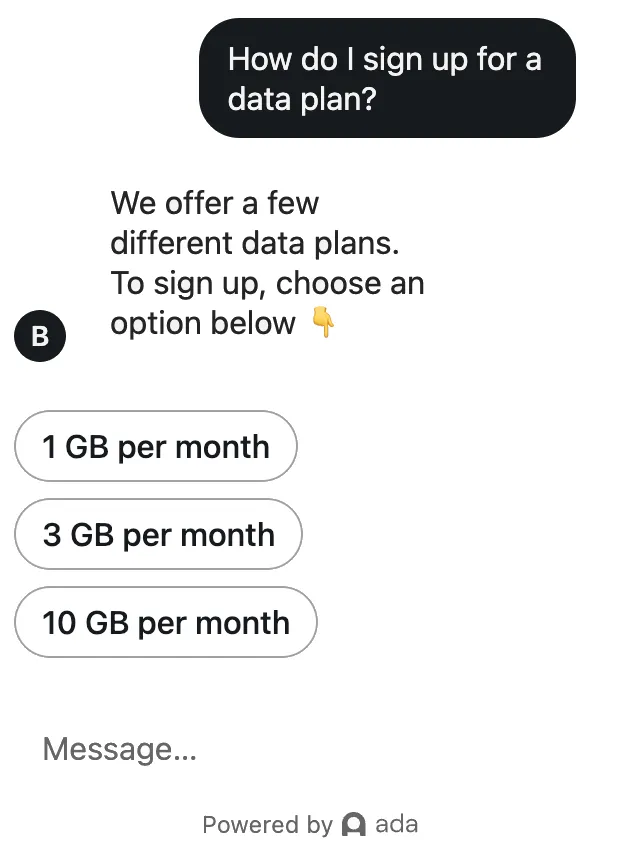
        A chatter asks to “sign up for a new data plan” but there are
        multiple plan options available. The bot should acknowledge the action
        that the chatter wants to take, and provide the list of plan options as
        quick reply buttons.
      </td>

      <td>
        ![](/_fern-files/_img/ef4213becdd886979af9f98edee907ed6ad6d69bce212c17732ad780a858331d.webp)
      </td>
    </tr>
  </tbody>
</table>

<table>
  <thead>
    <tr>
      <th>
        Use Case 2: Suggestions
      </th>

      <th>
        Chatter's view
      </th>
    </tr>
  </thead>

  <tbody>
    <tr>
      <td>
        Anticipating additional questions and proactively offering topics
        that the chatter might want to learn about.

        \


        **Example**

        \


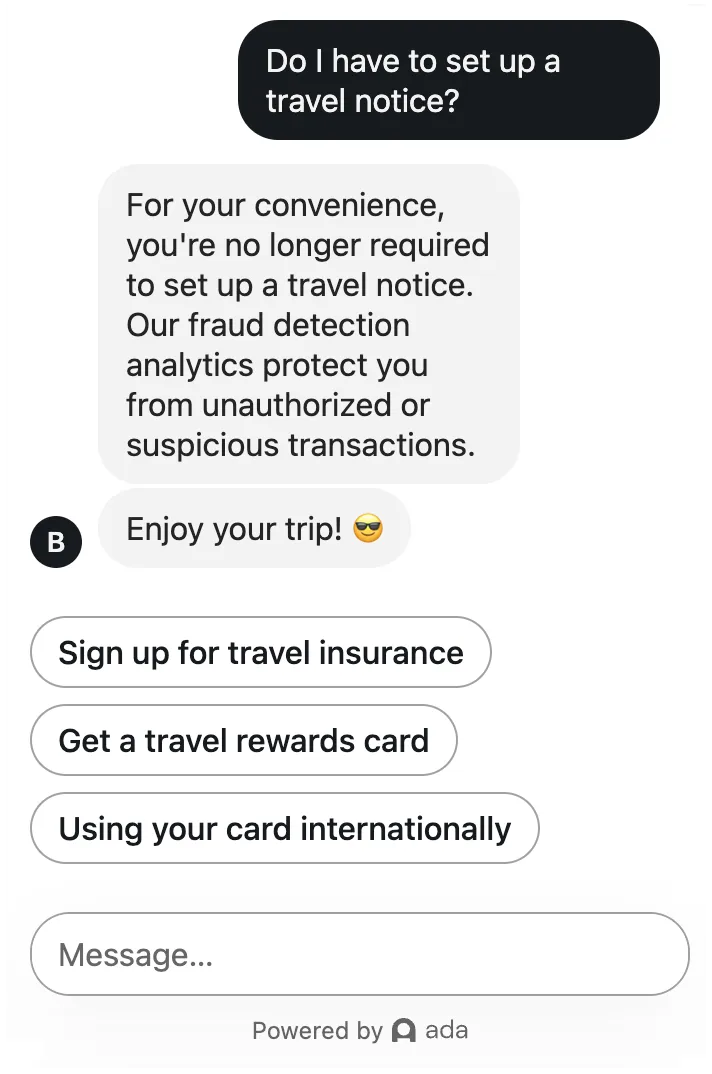
        A chatter is asking about setting up a travel notification on their
        credit card. The bot should Answer their question, but also suggest
        Answers about:

        * travel insurance
        * travel mile rewards cards
        * tips for using credit cards abroad
      </td>

      <td>
        ![](/_fern-files/_img/376ef342d821e54e4f0c2dfb6db1ee08babb8ec3c50cdec66e3f7b6360711503.webp)
      </td>
    </tr>
  </tbody>
</table>

> **Info**
>
> The difference between Menus and Suggestions: Using a **Menu Answer**,
> the chatter must select a quick reply option in order to receive the
> full information that they are looking for. Using quick Replies to offer
> **Suggestions** provides the chatter with related information that they
> didn’t explicitly ask for. In this case, the chatter could choose not to
> view any of the suggested options because their original question has
> already been addressed in the Answer presented.

<table>
  <thead>
    <tr>
      <th>
        Use Case 3: Linear steps
      </th>

      <th>
        Chatter's view
      </th>
    </tr>
  </thead>

  <tbody>
    <tr>
      <td>
        Breaking up long pieces of content into more manageable
        steps.

        \


        **Example**

        \


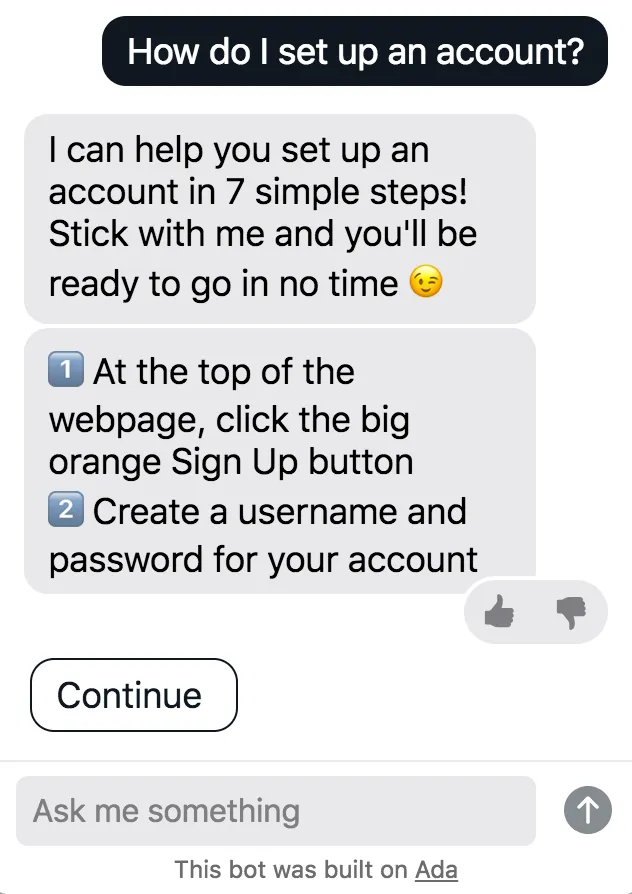
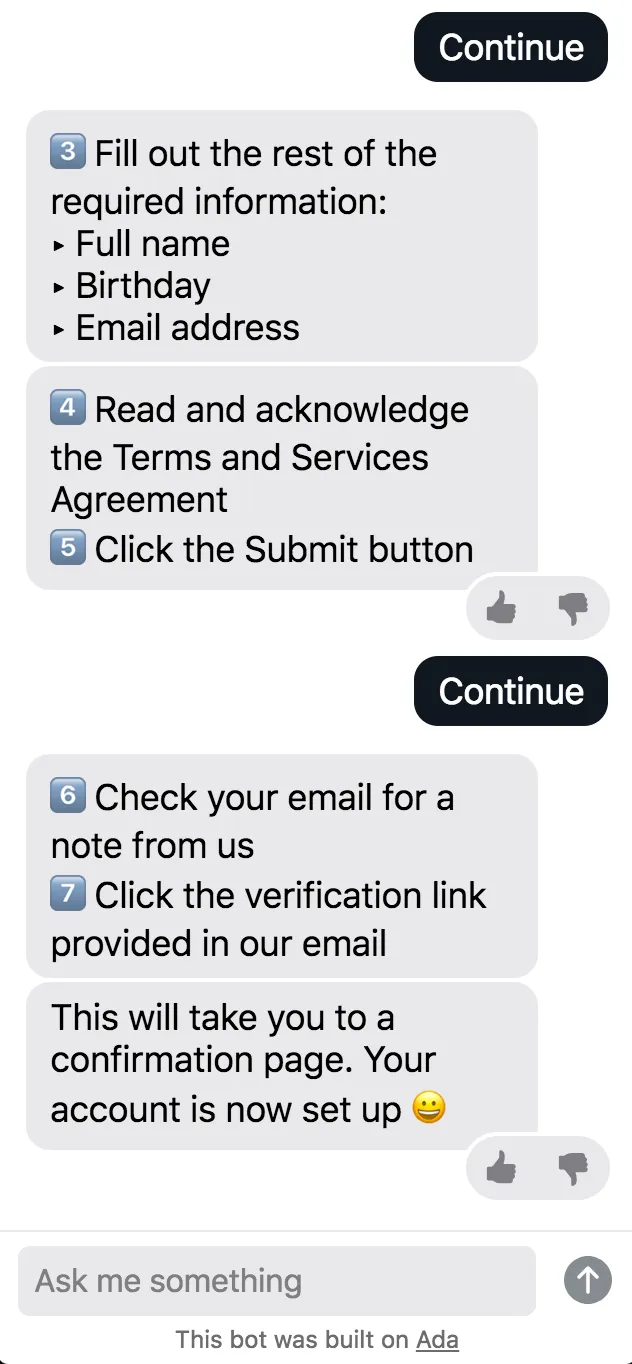
        A chatter asks how to create an account, but there are many steps to
        follow. Group a few steps into one Answer at a time. At the end of each
        Answer, include a QR button that triggers the next Answer in sequence.
        The chatter indicates when they are ready for the next grouping of
        instructions by clicking on a quick reply button, often labelled as
        "Continue."
      </td>

      <td>
        ![](/_fern-files/_img/d4d4e121c504575af55d648501e7bef09078b9aa5781f0d2b20b75fc432ba7ff.webp)

        ![](/_fern-files/_img/cde458739cd513fd66b8cb639dd97a44d706a18e53f7c8e30ade78a826e6405b.webp)
      </td>
    </tr>
  </tbody>
</table>

<table>
  <thead>
    <tr>
      <th>
        Use Case 4: Differentiation
      </th>

      <th>
        Chatter's view
      </th>
    </tr>
  </thead>

  <tbody>
    <tr>
      <td>
        Funneling chatters who ask a general question towards the
        specific Answer, based on their responses to disambiguating
        questions.

        \


        **Example**

        \


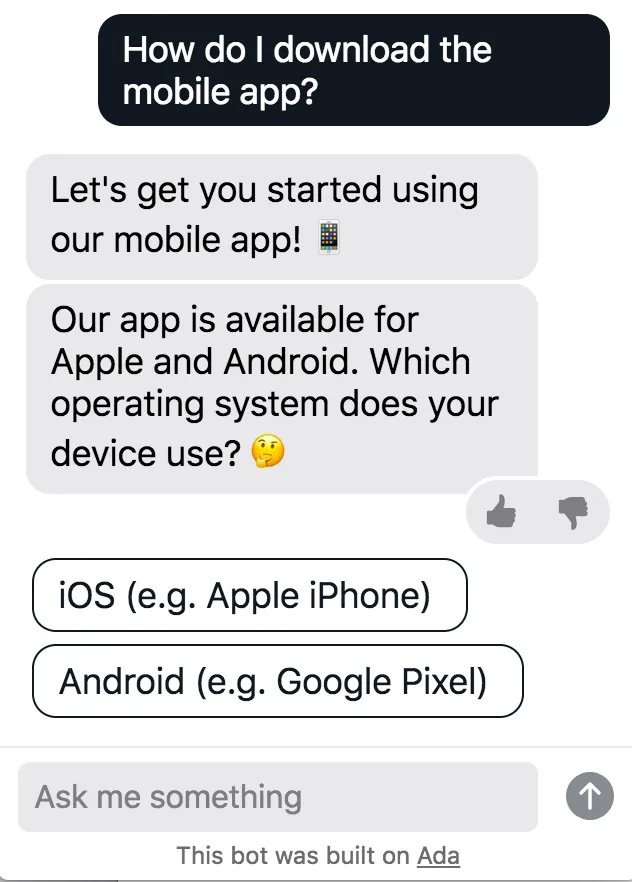
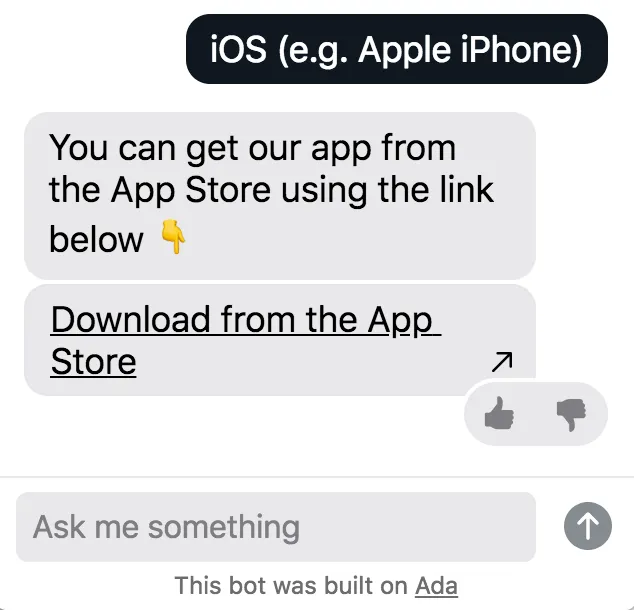
        A chatter asks how to download the mobile app, but there are
        different instructions depending on their phone’s operating system. In
        order to direct them to the appropriate instructions for their specific
        device (Apple or Android), have the bot ask them what type of phone
        they’re using.
      </td>

      <td>
        ![](/_fern-files/_img/81a4cd14fbdc0680f51abcee114d9f455dbdd385e974081baaeb645c698e0f03.webp)

        ![](/_fern-files/_img/ac611fea95a47a234aea437068fcaceec7c30b4c243c948c73f06c982bab4f0b.webp)
      </td>
    </tr>
  </tbody>
</table>

## Build a decision tree\[#UUID-82f30670-1a6a-ed51-28c5-3a5cebb23791_id_360018117594_id_building-decision-trees]

It's best to plan out your decision tree structure before you start to
build the Answers in the bot. If possible, write a draft first, and then
build the Answers from the bottom up. Starting with the Answers at the
end of the flow means that they will be ready to link to using quick
replies when building the Answers above them.

This isn’t a requirement, and you can always build from the top down,
just remember to go back and add the quick reply links to the Answers
earlier in the flow.

### Step-by-step example\[#UUID-82f30670-1a6a-ed51-28c5-3a5cebb23791_id_360018117594_id_step-by-step-example]

The screenshots below show an overview of this process using the menu
example. As a reminder, here is what the chatter would see:

![](/_fern-files/_img/7b5da91c5d071a22022b1db2fbc4a84c9fb5a033566db427162801a79082757b.webp)

1. Build the decision tree branches first.

   ![](/_fern-files/_img/d9efd26b382c3bf2bc9c14b2b6ebeeb9a7e6e77a051a98cac26a60c3c5942031.webp)

2. Build an Answer for the top menu.

   ![](/_fern-files/_img/a7512c3f27147f85fb570238769f8703acdb6f3ad02383b1b56b69ba79544958.webp)

3. In the menu Answer, link the subsequent Answers in the flow using
   the [Quick Replies block](/scripted/docs/build-and-maintain-your-bot/work-with-blocks-and-apps/let-chatters-advance-to-other-answers-with-the-quick-replies-block).
   Add each Answer you want to add to create the quick reply buttons
   that will appear at the bottom of the menu Answer. For more
   examples, see the [Write Answer titles and quick replies](/scripted/docs/build-and-maintain-your-bot/create-conversations/guide-chatters-through-conversations-using-answer-flows-and-quick-replies#UUID-82f30670-1a6a-ed51-28c5-3a5cebb23791_id_360018117594_id_answer-titles-quick-replies-for-decision-trees)
   section of this topic.

   ![](/_fern-files/_img/0b00993ab3899385fff6ea2940d3d9ed7a94158a8aa6f1e0c5686e98ce4d7903.webp)

When creating Answers that are part of a decision tree, it's a good idea
to make sure your labels are clear so you don't get lost:

* Answer title

* Quick replies

* Content management (tags and/or descriptions)

### Write Answer titles and quick replies\[#UUID-82f30670-1a6a-ed51-28c5-3a5cebb23791_id_360018117594_id_answer-titles-quick-replies-for-decision-trees]

Creating a succinct but descriptive title is essential for decision tree
management in the Answers view. The more complex a tree, the more
detailed “breadcrumbs” are required in the Answer titles to know where
they fall within the larger sequence or structure.

These Answer titles can become long (e.g., if deep into a decision tree
flow) or include details meant for bot management, but not the chatter.
Remember to add a quick reply label when creating the Answer, so that
it’s descriptive and appropriate for the chatter’s view.

You can write quick reply labels in two places:

* In the Answer's
  [settings](/scripted/docs/build-and-maintain-your-bot/train-and-manage-answers/manage-answer-settings),
  in the Answer Label field. This label will then be the default text
  for both quick replies and when the Answer appears in [Needs Clarification](/scripted/docs/build-and-maintain-your-bot/train-and-manage-answers/understand-the-needs-clarification-and-not-understood-answers)
  and
  [Suggestions](/scripted/docs/build-and-maintain-your-bot/create-conversations/offer-predictive-suggestions-for-answers-as-chatters-type)
  scenarios.

* In the [Quick Replies block](/scripted/docs/build-and-maintain-your-bot/work-with-blocks-and-apps/let-chatters-advance-to-other-answers-with-the-quick-replies-block)
  in your Answer. Once you select an Answer, its default label appears.
  You can override it by typing in a new label for this particular
  instance in the bot. Doing so doesn't affect the default label.

> **Note**
>
> If you don't write an Answer label, the default label when it appears as
> a quick reply will be the exact Answer title. Keep this in mind if your
> Answer title isn’t written for the chatter’s view.

There are a couple best practices to follow:

<table>
  <thead>
    <tr>
      <th>
        Use Case: Linear steps
      </th>

      <th>
        Chatter's view
      </th>
    </tr>
  </thead>

  <tbody>
    <tr>
      <td>
        Include "Part X of Y" to indicate which step the user is seeing,
        and how many total steps there are in the tree.

        \


        **Examples**

        \


        1. 1\. Answer title: Creating account - 1/3
        \- Answer label: Creating an account
        \

        4. 2\. Answer title: Creating account - 2/3
        \- Answer label: Continue
        \

        7. 3\. Answer title: Creating account - 3/3
        \- Answer label: Continue
      </td>

      <td>
        ![](/_fern-files/_img/d4d4e121c504575af55d648501e7bef09078b9aa5781f0d2b20b75fc432ba7ff.webp)

        ![](/_fern-files/_img/cde458739cd513fd66b8cb639dd97a44d706a18e53f7c8e30ade78a826e6405b.webp)
      </td>
    </tr>
  </tbody>
</table>

<table>
  <thead>
    <tr>
      <th>
        Use Case: Differentiation or Menu
      </th>

      <th>
        Chatter's view
      </th>
    </tr>
  </thead>

  <tbody>
    <tr>
      <td>
        Include the title of the main Answer (and any Answers that come
        before), separated by the > symbol.

        \


        **Examples**

        \


        1. 1\. Answer title: Download the app
        \- Answer label: none needed; can use the default Answer title
        \

        4. 2\. Answer title: Download the app > iOS
        \- Answer label: iOS (e.g. Apple iPhone)
        \

        7. 3\. Answer title: Download the app > Android
        \- Answer label: Android (e.g. Google Pixel)
      </td>

      <td>
        ![](/_fern-files/_img/81a4cd14fbdc0680f51abcee114d9f455dbdd385e974081baaeb645c698e0f03.webp)

        ![](/_fern-files/_img/ac611fea95a47a234aea437068fcaceec7c30b4c243c948c73f06c982bab4f0b.webp)
      </td>
    </tr>
  </tbody>
</table>

### Manage content using tags and descriptions\[#UUID-82f30670-1a6a-ed51-28c5-3a5cebb23791_id_360018117594_id_content-management-using-tags-descriptions]

Tags allow you to categorize your answers. In the Answer's Settings
window, you can create one or more unique tags for each decision tree
and apply them consistently to all the Answers in the flow. Once a tag
has been created, it can be selected from the list of existing tags when
creating or editing Answers. You can create tags yourself, but you will
also find that there is a default "Top" tag. This tag will allow you to
indicate which answers are the top of a decision tree or answer flow, or
put another way, where a chatter begins their journey within a
multi-answer flow.

The Description field in the Answer's Settings window can also help you
manage decision trees. Consider naming each decision tree (e.g. Journey
1 - Creating an account) and using the Description field to keep track
of the name and any other relevant details.

![](/_fern-files/_img/268df44a90db07ea29a2e98474e4c62e3f90b8786ed7022de3f4d3fc268a9e5c.webp)

#### Searching and filtering by tag or description\[#UUID-82f30670-1a6a-ed51-28c5-3a5cebb23791_id_360018117594_id_searching-and-filtering-by-tag-or-description]

You can search for answers with a particular tag by either clicking on a
tag in the sidebar, typing the tag name into the search bar inside
square brackets \[ ], or using the Filter by tags menu and selecting
one or more tags. This will filter the Answers, so that only Answers
with all of the tags you searched for appear.

![](/_fern-files/_img/ae5ecb028034f438a14c6ec3bd676769263a2801a021874030902ee6e791182f.webp)

The Description field is part of the search results in the Answers View.
You can search for the decision tree name that you assigned as the
description, or other unique keywords that relate to the decision tree
you’re looking to isolate using search/filter.

![](/_fern-files/_img/1c005d5ffeb887f27ccc894efba2099bff8cc7b7f9fd179ffe1fae47354abe0f.webp)

### Training for decision trees\[#UUID-82f30670-1a6a-ed51-28c5-3a5cebb23791_id_360018117594_id_training-for-decision-trees]

The top level of a decision tree will always require training. The
amount and breadth of its training will depend on how you want chatters
to work through the flow:

#### Option 1: Top-down only\[#UUID-82f30670-1a6a-ed51-28c5-3a5cebb23791_id_360018117594_id_option-1-top-down-only]

If you want to guide chatters through the flow starting from the top,
then the branches of the decision tree should have no training. Instead,
the highest level Answer (e.g. a top-level menu) needs to have training
that not only would match chatters to the menu, but that also
encompasses the topics covered in all of the branches. The chatter can
then only see the branches' content by advancing through the decision
tree, using quick replies.

This style is most commonly used for linear steps, where a chatter must
go through Answers in order from top to bottom, using the quick reply
options to proceed.

**Example: The 3-part instructions to set up an account**

What the chatter sees:

![](/_fern-files/_img/d4d4e121c504575af55d648501e7bef09078b9aa5781f0d2b20b75fc432ba7ff.webp)

What the training looks like for the top-level:

![](/_fern-files/_img/ad60a28a75b29e87349788a6b79ca38065d0ea84c9a9109dd9e6beb02bdeec86.webp)

What no training looks like for the second (and third) level:

![](/_fern-files/_img/58a92c01604f129af39eacdde6278661337599696da9bc58479b7d926b119052.webp)

#### Option 2: Skip-ahead\[#UUID-82f30670-1a6a-ed51-28c5-3a5cebb23791_id_360018117594_id_option-2-skip-ahead]

You can allow chatters to skip a Menu or other higher level Answers if
their question is detailed enough to match to a more specific Answer.
For this to work best, ensure that the Menu/top level Answer has fairly
broad/unspecific training and that the training for the branches include
all the details.

If the Menu and the branches aren’t unique enough, then the bot might
not be able to confidently differentiate between them, and could offer
them all as Clarifications. This isn’t a bad thing, as the chatter will
still get to their Answer, it just makes it less straightforward for
them.

**Example: The data plan Menu**

What the chatter sees:

![](/_fern-files/_img/7b5da91c5d071a22022b1db2fbc4a84c9fb5a033566db427162801a79082757b.webp)

What the broad/general training looks like for the Menu:

![](/_fern-files/_img/86fc0a5832d91b1eefb8faedc1294804f4565da5d546db3b8c819887999a4574.webp)

What the detailed training looks like for the branches:

![](/_fern-files/_img/c64de6d343021217bdb9a023bac9bef6bac96ac338624ff4af88a062f086a4ba.webp)

---

Have any questions? Contact your Ada team, or email us at [](<mailto:help@ada.support%20%E2%80%9CHelp Docs inquiry%E2%80%9D>).